“Evanesco Iconia!”
 Norbert on Mac, LaunchBar —
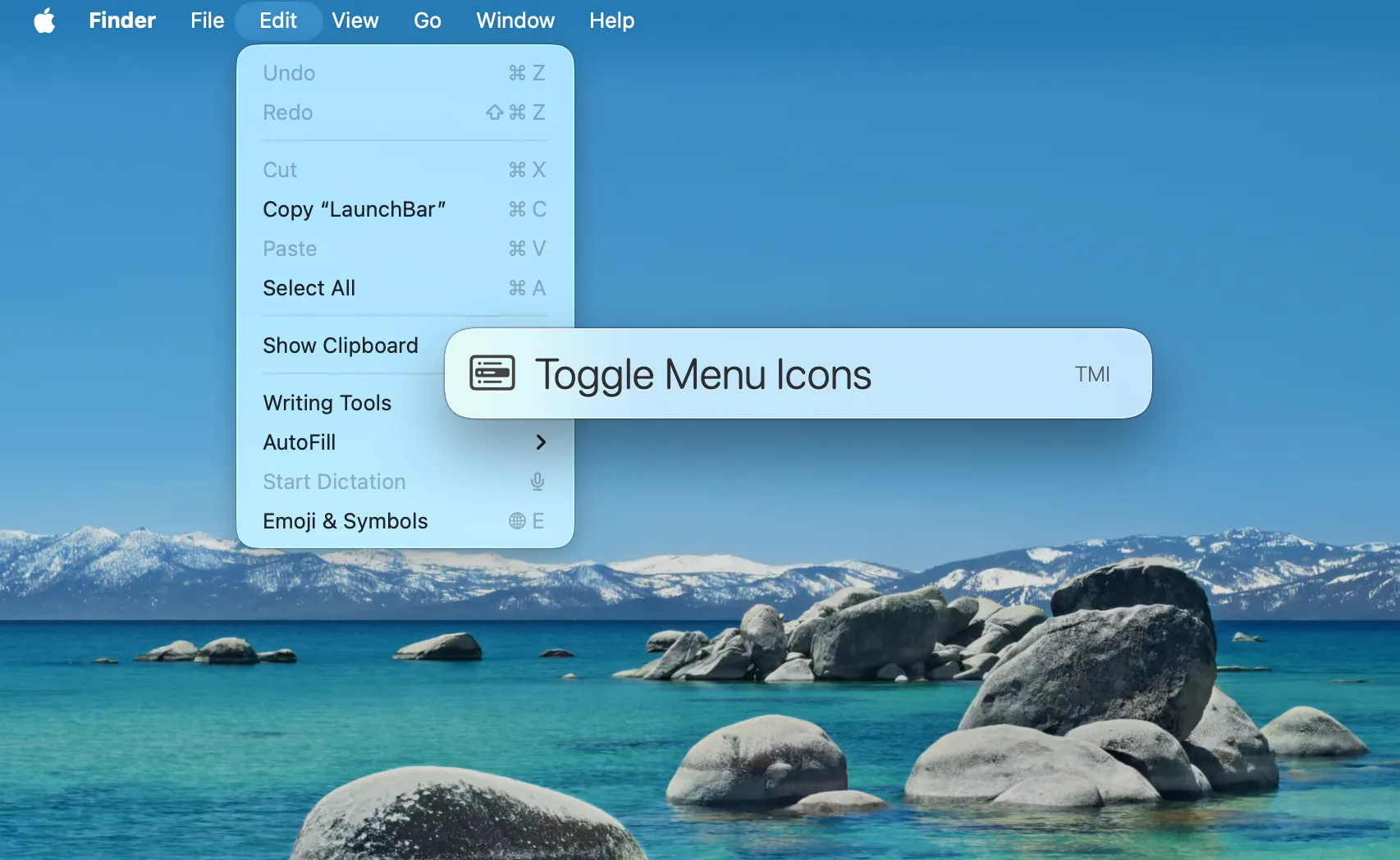
There’s a lot not to like about the new “every menu item needs an icon” feature in macOS Tahoe.
- They add visual noise to the menus.
- They make menus more inefficient to scan.
- They often result in an inconsistent alignment of menu item titles.
- They are too small, and often blurry and hard to decipher.
- They are often inconsistent (different icons used for the same action).
- They are often ambiguous (the same icon used for different actions).
- Some menu items still don’t have icons, leaving weird gaps among other items that do have icons.
- And finally, nobody asked for them…
The Good News
There seems to be an undocumented, hidden user default that lets you turn them off:
defaults write -g NSMenuEnableActionImages -bool false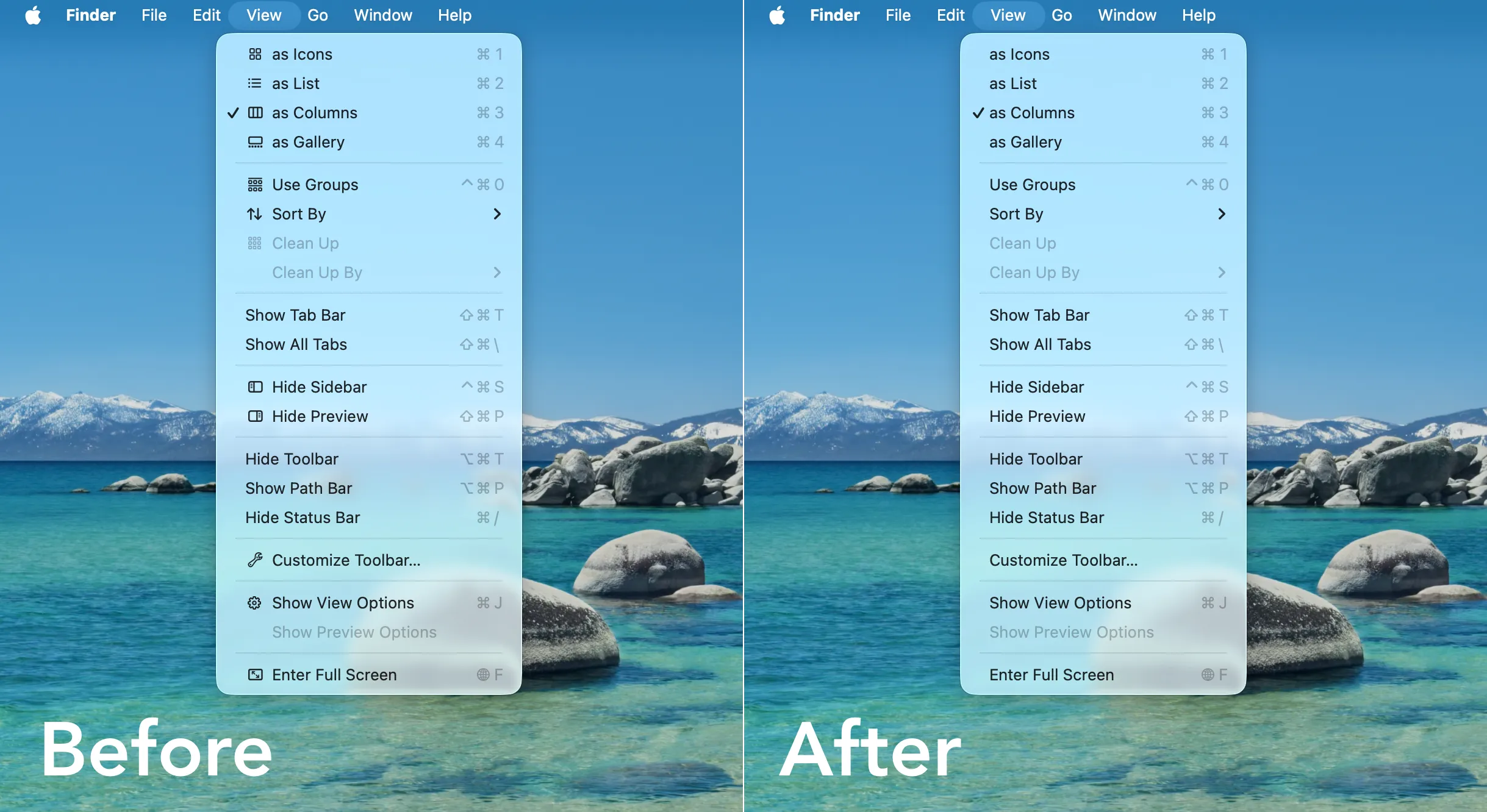
The Bad News
This works for many, but not all apps. Especially in many of Apple’s standard apps like Mail, Safari, Messages, Maps or Calendar you still get your menus cluttered with some (or many) of these icons – not all of them disappear.
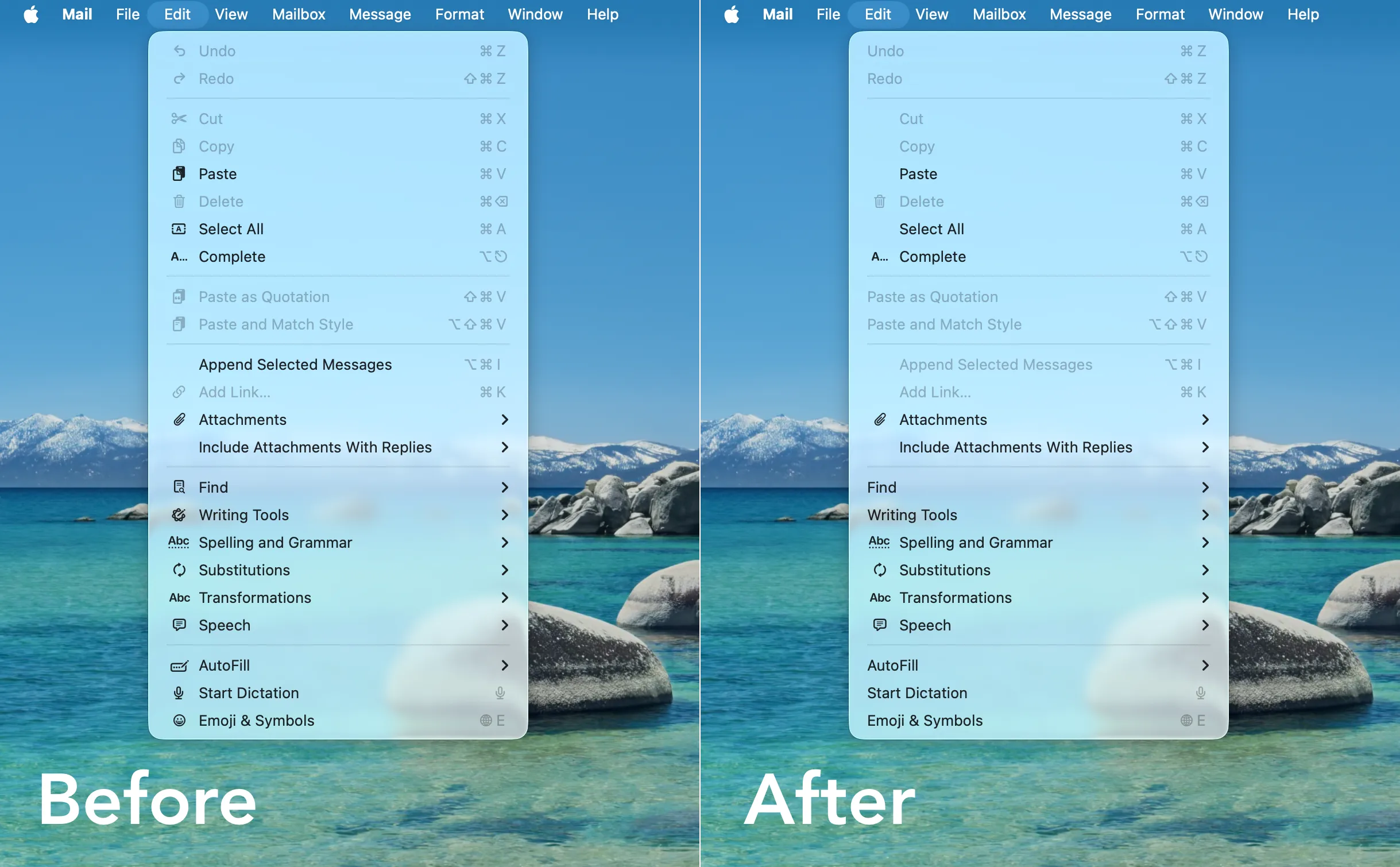
But it does work in many other apps like Finder, Photos, Numbers, Preview, Xcode and in most third-party apps. So if you don’t like the icons, this is still way better than nothing.
LaunchBar Action
If you are using LaunchBar and want to experiment with this hidden system setting a little bit, here’s a convenient LaunchBar action for turning it on and off:
→ Download the Toggle Menu Icons action